Copilot Writing at Work: What It Gets Wrong and How to Fix It
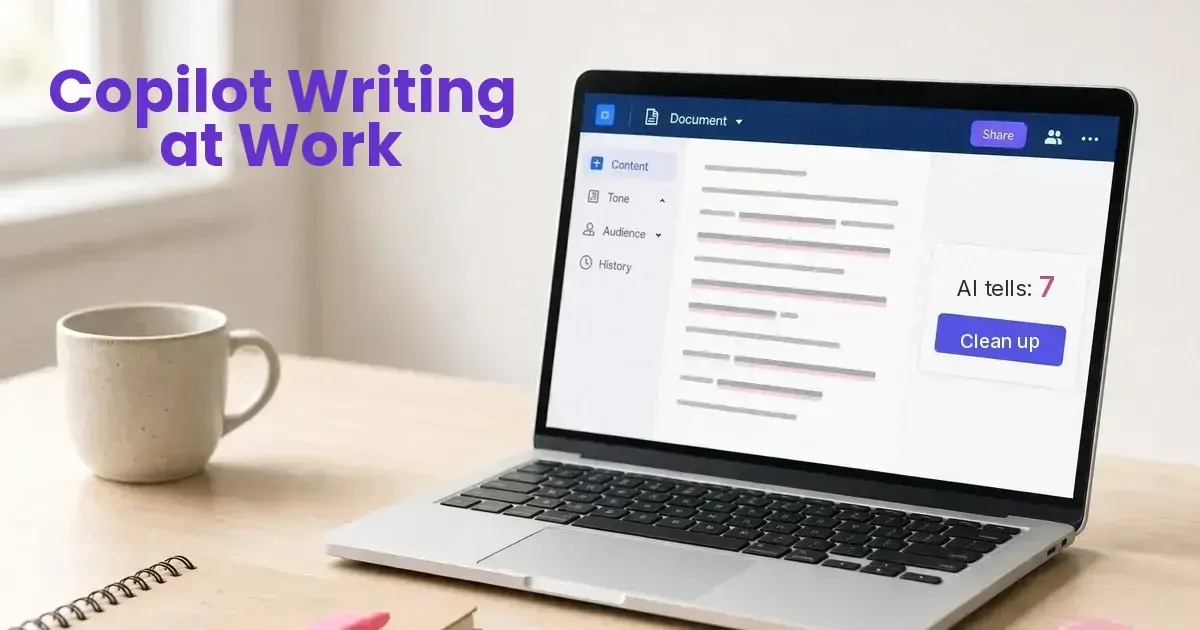
Copilot writing at work is fast but often generic. Use a short editing routine that puts your voice back before anything goes out.
- Free scan, no sign up
- Runs in your browser
- Hidden character check
- Works on Word and Outlook text
Forgot your code?
Copilot writing at work means drafting emails, reports and summaries with Microsoft Copilot, the AI assistant that sits inside the apps people already use. It speeds up the first draft, but the output tends to sound generic: even sentences, safe word choices and a tidy neutrality that reads more like a template than a person. A short editing routine puts the writer's voice back.
Quick answer: To fix Copilot writing at work, run four passes before anything goes out. Read the draft out loud and vary sentence length. Swap stiff words like utilize and facilitate for the words you would say. Check em dashes, bullet formatting and invisible Unicode characters with a scanner. Then add one detail Copilot could not know, such as last week's number or the client's name. The app guides for Word, Outlook and PowerPoint cover each one in detail.
Microsoft calls Copilot your AI assistant for work, one that helps with brainstorming, writing, coding and searching. The trouble isn't that Copilot writes badly. It writes generically, and generic stands out when your name sits at the top of the page. Below is a working list of what Copilot gets wrong, plus the editing passes that fix each problem.
What Copilot Writing at Work Does Well
Start with what the tool earns. People who write with Copilot regularly tend to name the same benefits: it saves time getting started, it's quick at formatting, and it lets them reuse existing work in new ways. Copilot Notebooks goes further. It helps you organize your material and build something new from it, and it can even turn a notebook into a podcast-style audio overview.
Copilot is also good at shaping rough thinking. You can dump a stream of half-formed thoughts into the prompt, then have Copilot turn them into a structured draft. That part is worth keeping. The part worth fixing is everything that happens after the draft exists.
Four Things Copilot Writing at Work Gets Wrong
These problems show up again and again, whether the output is an email, a status update, a report or a proposal. None of them is a disaster on its own. Together, though, they create the flat, faintly familiar tone that colleagues start to notice.
It flattens your rhythm
Copilot tends to produce sentences of similar length and similar shape. Subject, verb, object, next line. Read aloud, the draft has a metronome quality that no human writes on purpose. Detectors look at this through perplexity and burstiness, which roughly means how predictable the word choices are and how much sentence length varies. Copilot's defaults push both toward the middle. So good editing pushes them back out, because that variation is what makes text sound like a person wrote it.
It reaches for the same vocabulary
Certain words appear in Copilot writing at work far more often than in human writing. Utilize, facilitate, streamline and a list of others you can see on our page of AI words to avoid. They aren't wrong words. Language models simply overuse them, which turns them into a fingerprint. One stiff word won't sink a document, but four of them in two paragraphs tells a reader something about how the text was made.
It leaves typography tells behind
Punctuation and formatting carry signals too. Em dash overuse is one of the most cited AI tells, along with bullet lists where every item is the same length and headings that all follow one grammatical pattern. Text copied out of an AI tool can also bring invisible Unicode characters with it. That's a separate problem from hidden instructions embedded in a document. Either way, if you paste Copilot text into a chat, an email or a shared doc, the underlying characters travel with it.
It works without your context
Copilot can connect to your work content, but it still doesn't know the room. It doesn't know that your director hates preamble. It doesn't know the client asked for a one-page summary, or that last quarter's project failed for reasons nobody wrote down. Instead, it fills those gaps with generic assumptions. That's what makes a draft feel like it was written for anyone, which means it was written for no one.
How to Prompt Copilot So It Writes Less Like Copilot
Microsoft's own advice is to spell out your goal, context, source and expectations when you prompt, and that's the right instinct. The mistake is asking for a draft when what you need first is feedback or a constraint.
| What you ask Copilot | What it fixes |
|---|---|
| Give me feedback on this copy, in the areas of clarity and brevity: [paste your text] | Bloated drafts that bury the point in the middle |
| Rewrite this using my wording. Change only grammar, punctuation, and clear errors. | Copilot replacing your voice with its own on a light edit |
| Vary sentence length. Do not put three sentences of similar structure in a row. | The flat, even rhythm that reads as machine-made |
| Before you draft anything, ask me three questions you need answered. | Generic output that ignores the audience and the ask |
| Replace abstract business vocabulary with the plainest word that fits. | Inflated language and the usual suspects like utilize and facilitate |
One caveat on the light-edit prompt. It works better as a cleanup pass than as a full rewrite. Ask Copilot to keep your structure and word choices, then accept its grammar fixes and ignore the rest. If you let it rewrite, you get its voice back and lose the only thing that made the draft yours.
The Four-Pass Edit That Fixes Copilot Output
Editing is where the value gets made. Run these four passes in order on any piece of Copilot writing at work, and you'll see the difference by the second one.
Pass 1: Read it out loud. Your ear catches rhythm problems faster than your eye. Anywhere you run out of breath or slip into a sing-song pattern, split or merge the sentence. Aim for visible variation: a short sentence, then a longer one, then something in between. This single pass fixes more AI tells than any rewrite prompt.
Pass 2: Swap the vocabulary. Search the draft for the usual suspects and replace them with the word you'd actually say. Utilize becomes use. Facilitate becomes run or help. Streamline becomes cut a step. If a replacement feels less impressive, that's usually the right sign.
Pass 3: Fix typography and hidden characters. Check your em dashes, your bullet formatting and your heading patterns. Then check what you can't see. Paste the final draft into the scanner above and it will flag typography tells and invisible Unicode characters, score how human the text reads and look for hidden prompts. It runs in your browser and doesn't need an account.
Pass 4: Put yourself back in. Add the thing Copilot couldn't know: the specific number from last week, the name of the client who complained, the reason the timeline slipped. One concrete detail from your own memory does more than any rewrite, because it's the one thing a model can't generate from a prompt.
Copilot Writing at Work in Word, Outlook and PowerPoint
The same four passes apply in every Microsoft 365 app, but each app has its own habits. Our guide to Copilot in Word covers reports and memos. For email drafts, see Copilot in Outlook. Slide copy and speaker notes get their own page on Copilot in PowerPoint. And if you want the scanner close to where you write, here's how to remove AI tells in Microsoft 365.
A Pre-Send Check for Copilot Writing at Work
A short routine keeps Copilot writing at work from sliding back into template mode when you're in a hurry.
- Read the first sentence of each paragraph. If they all start the same way, change some.
- Search for em dashes, semicolon stacks and any bullet list where every item has the same length.
- Confirm at least one specific, verifiable detail appears that only you could have written.
- Run the text through a scanner for invisible characters if it's heading into a shared document or an email thread.
- Check your employer's rules on what may go into a prompt before you paste anything sensitive.
Frequently Asked Questions
How do I use Copilot to improve my own writing?
Give it your draft and ask for feedback or a light edit instead of a rewrite. Select a passage and ask Copilot to tighten it, check it for clarity, or fix only grammar and punctuation. Then accept the fixes you agree with and keep your own wording everywhere else. That way Copilot improves your writing without replacing your voice.
Can Copilot write a professional letter?
Yes. In Word or Outlook, describe who the letter is for, why you are writing and the outcome you want, and Copilot will draft it. Before you send it, put the reason for writing in the first line, add the details only you know (names, dates, amounts, what was agreed), cut the stock opening and closing lines, and read it aloud once. A cover letter needs extra care: see our AI cover letter guide.
Is Copilot writing at work allowed?
That depends on your employer, not on Copilot. Microsoft documents what the tool does, but your organization sets the rules for what you may put into it and what you must disclose. So check your internal policy or ask your manager before pasting client material, personal data or anything marked confidential into a prompt. For when to mention it, see how to disclose AI use at work.
Can my company see what I write in Copilot?
It varies by how your account is set up. If your Copilot writing at work happens under a work account, your IT or admin team controls the settings. They can tell you what is logged and who can access it. Ask them directly instead of assuming either way.
Why does Copilot output sound robotic?
Because it optimizes for safe, predictable phrasing. Perplexity and burstiness describe how surprising the word choices are and how much sentence lengths vary. Copilot's defaults push both toward the middle, which gives you familiar words and similar sentence shapes. Human writing wanders more, and that variation is what you restore when you edit.
How do I stop Copilot from using em dashes?
Say so before it writes. Add a line to your prompt asking it to avoid em dashes and stacked clauses. Then check during your edit anyway, because formatting shifts when text moves between apps. Finally, paste the draft into a scanner that flags typography tells and replace anything you wouldn't have typed yourself.
Will Copilot writing at work get flagged as AI?
It might, and no tool can promise otherwise. Detectors estimate rather than detect, and they produce false positives on writing that is simply clean and formal. Stanford researchers found that AI detectors classified more than half of TOEFL essays by non-native English students as AI-generated. The better goal is writing that sounds like you: varied rhythm, plainer words and details only you could supply. Treat the Copilot draft as a head start, never the finished product.
Looking for other ideas? See all the ways to use Remove AI Tells.