Copilot in Outlook: Make Email Drafts Sound Like You
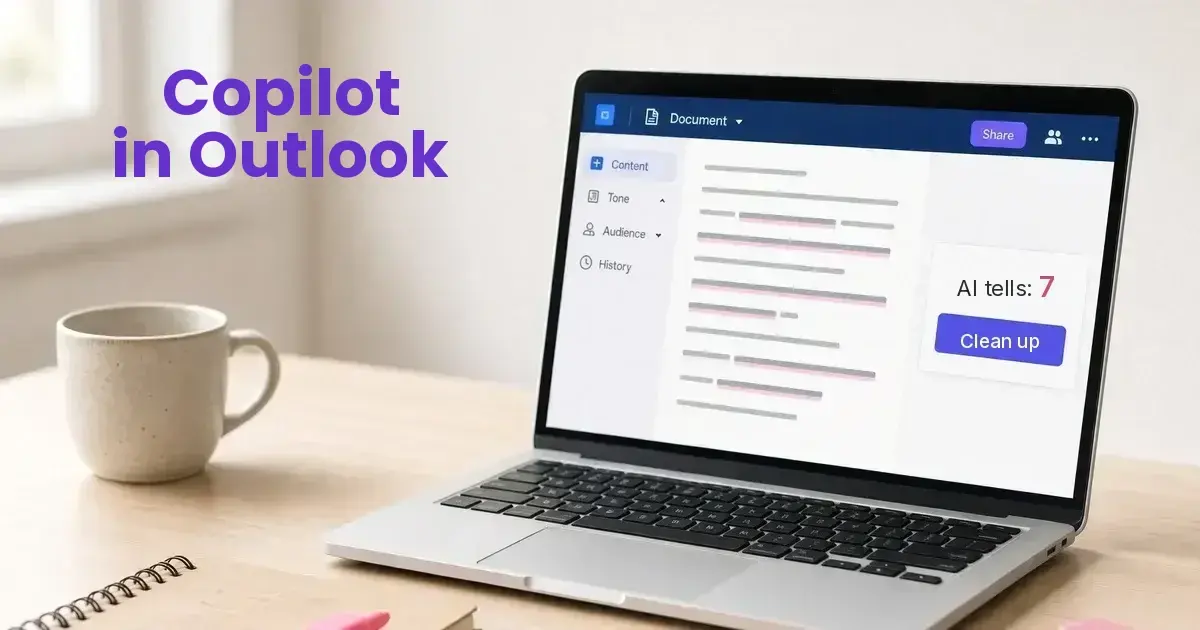
Copilot in Outlook writes the email fast. Here is how to edit that draft so it reads like you sent it, not like a template.
- Free scan, no sign up
- Runs in your browser
- Hidden character check
- Works on Outlook text
Forgot your code?
Copilot in Outlook is the AI assistant that drafts emails and replies inside Outlook. Click Help me write or Help me reply, and a finished draft appears before you have decided what to say. The sentences come out clean. Clean is not the same as yours, so each draft needs a short edit before it sounds like you.
Quick answer: Start with one line of context about the reader and what you want them to do. Set the tone and length in Copilot in Outlook, then read the draft once without editing. Rewrite any sentence that does not sound like you, cut the padding, and replace em dashes with commas or periods. Before sending anything important, scan the text for hidden characters and read it one last time.
Turning a Copilot draft into something that sounds like you is editing work, and it takes less time than most people expect once you know what to look for. This page covers Outlook only. For Word, PowerPoint, and the rest of the Microsoft apps, start with our hub on Copilot writing at work.
Where Copilot in Outlook sits in your inbox
Both buttons sit in the email message area. Microsoft's steps for drafting an email with Copilot in Outlook begin there. The chat pane opens if it was not already open. That matters, because the pane is where you steer the draft instead of accepting the first version you get.
Like the rest of Copilot in Microsoft 365, Copilot in Outlook works from context. Microsoft describes its email feature as using natural language processing that offers real-time suggestions based on your writing. So the more context you give it, the less generic the output tends to be.
Microsoft's own steps end with a plain instruction: review the message. If it is not quite what you want, change the length or tone, or try a new prompt. That review is not a formality. It is the part of the process where your voice comes back into the message.
Why the first Copilot in Outlook draft rarely sounds like you
A Copilot draft usually arrives carrying four kinds of AI tells: vocabulary, rhythm, typography, and hidden characters. Three of those are visible on the page and easy to edit. Hidden characters are invisible, which is why a separate scan is worth running before you send anything important. None of these are mistakes exactly. They are patterns, and patterns are what detectors measure when they score perplexity, meaning how predictable each word is, and burstiness, meaning how much sentence length varies.
Vocabulary tells
Some words show up because they fit almost any sentence. Big, vague verbs and polished adjectives are the usual culprits. Your own writing almost certainly runs on a smaller, more specific word list, and that is the point. Swap the generic word for the one you would say out loud. If you would say fix instead of address, write fix.
Rhythm tells
Copilot in Outlook leans toward even sentence lengths and tidy three-part lists. Real email is lumpier than that. One short sentence. Then a longer one carrying the actual explanation, followed by a fragment tacked on at the end. Read your draft aloud and mark where you run out of breath. That is usually where a sentence needs to be cut.
Typography tells
Em dashes, curly quotation marks, and evenly spaced paragraphs are quiet signals that something other than a person typed the message. Replace em dashes with commas, periods, or parentheses. If your normal style is one long paragraph and a sign-off, do not let the tool talk you into four tidy blocks of equal length.
Start with the tone and length controls
Microsoft's short Copilot tutorial on drafting an email is built around two settings: tone and length. Changing them is the fastest way to move a draft closer to your style before you touch a single word by hand. Ask for the tone you actually write in, whether that is direct, warm, or brisk. Then pick a length that matches how long your emails normally run.
These controls shift the register of the message. They do not add your habits, your references, or your phrasing, so treat them as a starting point rather than a finished result.
A rewrite workflow you can run in a few minutes
- Give context before you generate. Because suggestions are based on the context of your message, one line about who the reader is and what you want them to do improves the draft more than any later edit.
- Read the whole thing once without editing. Mark only the sentences that do not sound like you.
- Rewrite those sentences in your own words. Say them out loud first if that helps you hear the difference.
- Cut the padding. Most Copilot drafts run longer than the email needs to be.
- Check punctuation and quotation marks for tool-default styling, especially em dashes.
- If the message matters, whether it is a proposal, an application, or a client thread, paste the text into the scanner above. It checks for tells and for hidden characters you cannot see. Then read the final version once more before sending.
Tells and fixes at a glance
| Tell | Where you see it | What to do |
|---|---|---|
| Vocabulary | Generic verbs and adjectives | Replace with the words you normally use |
| Rhythm | Even sentence lengths, tidy triads | Break one sentence, merge two others |
| Typography | Em dashes, curly quotes, even blocks | Use commas, periods, parentheses, straight quotes |
| Hidden characters | Nothing visible on the page | Scan the text before sending |
| Structure | Four evenly sized paragraphs | Match your normal email shape |
Instructions that push back on generic phrasing
The chat pane takes ordinary sentences, so you can argue with the draft instead of regenerating it from scratch. Ask it to shorten one specific paragraph, to cut a phrase you dislike, or to leave a particular sentence untouched.
You can also paste two or three of your own sent messages into the chat and ask Copilot to note how you open and close emails. Then have it write the new draft that way. That is not the same as training Copilot on your mailbox, which is a separate question readers ask often. Microsoft's published guidance centers on tone and length, so check the current documentation for what your plan supports.
Agentic Copilot in Outlook and the emails you should still write yourself
Copilot in Outlook has also become agentic, taking on the ongoing work of running your inbox and calendar. It can triage emails and reschedule conflicts without you guiding each step. That fits logistics well: confirming a time, acknowledging a document, promising to follow up next week.
It fits poorly with anything where the relationship carries the message. Think apologies, bad news, negotiations, and replies to someone who is upset. Those are the messages where a smooth, generic tone does real damage, so keep a hand on them.
Checking the draft before it goes out
Before you hit send, read the message the way a stranger would. Once for meaning, once for sound. If a sentence could have been written by anyone at your company to anyone else, it is a candidate for rewriting. The sample workplace emails from the Purdue OWL model a habit worth copying: the most important information goes early, and the tone stays professional throughout.
A tell scanner can flag the mechanical parts for you, including repeated vocabulary patterns and invisible characters, and give the text a score for how human it reads. The judgment call still belongs to you. No tool can promise what a detector will say about a draft, so check Microsoft's current guidance if a specific decision depends on it.
Frequently Asked Questions
How do I get Copilot in Outlook to rewrite an email?
Open the message area and click Help me write for a new email or Help me reply for a response. The chat pane opens and you can describe what you want changed, such as shortening a paragraph or shifting the tone and length. Then edit the result yourself, since Microsoft's steps tell you to review the message before you keep it.
Can I train Copilot in Outlook to write like me?
Microsoft's published guidance focuses on tone and length settings rather than teaching Copilot your personal style from your sent mail. You can get closer by pasting a few of your own emails into the chat and asking Copilot to mirror how you open and close messages. For what your specific plan supports, check the current documentation.
Why does my Copilot draft sound generic?
Two reasons usually explain it. The suggestions are based on the context you provide, so a thin prompt produces a thin draft. And the tool favors safe vocabulary and even sentence lengths, which read as smooth but impersonal. Adding context before you generate, then rewriting a few sentences in your own words, fixes most of it.
Does Copilot in Outlook check my email for mistakes?
It can help. Microsoft offers email coaching with Copilot that reviews your draft and suggests improvements, and you can ask the chat pane to tighten specific sentences. It is not a substitute for your own read-through, though. For grammar or tone checks beyond that, rely on your normal tools.
Should I tell people I used Copilot?
That depends on your workplace, your client, and the context of the message. Copilot is a drafting aid, so the more you rewrite it into your own voice, the less the question matters. Many organizations now have their own policies on disclosure, so check your employer's guidance rather than assuming one answer covers every situation.
Looking for other ideas? See all the ways to use Remove AI Tells.