Copilot in Word: Remove AI Tells From Reports and Memos
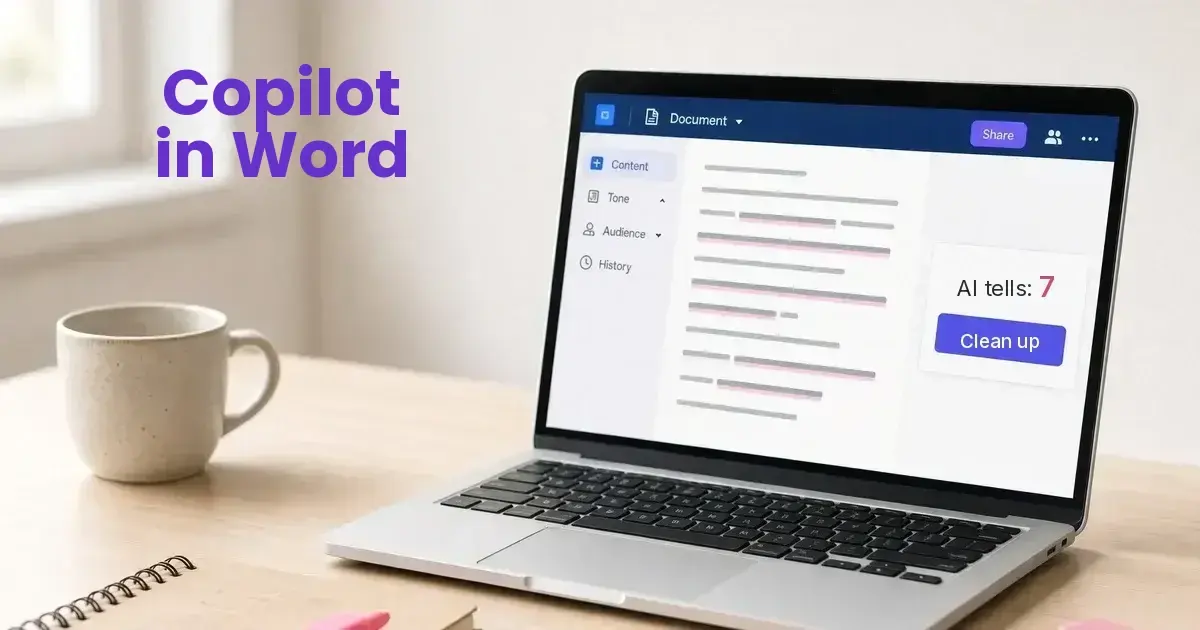
Copilot in Word drafts a memo in minutes. Here is how to find the AI tells in that draft and edit it until it sounds like your team wrote it.
- Free scan, no sign up
- Runs in your browser
- Hidden character check
- Works on Word text
Forgot your code?
Copilot in Word is the AI assistant inside Microsoft Word that writes, edits, summarizes, and creates alongside you. For plenty of people, a first memo draft now takes fifteen minutes instead of an afternoon. The catch is AI tells: off-style punctuation, a flat rhythm, and words nobody in your office says out loud. Readers spot them fastest in reports and memos.
Quick answer: To clean up a Copilot in Word draft, write the key recommendation yourself first. Then read the draft out loud. Swap inflated AI words for the plain words your team uses. Replace each em dash with a comma, colon, or period. Cut one sentence per paragraph down to about five words. Verify every name, number, and date. Finally, scan for hidden characters if the text passed through a chat window.
That draft goes out under your name, so the tells are yours too. A chat reply gets skimmed and forgotten. A memo gets forwarded to six people and read twice. For the wider picture across every Microsoft app, see our guide to Copilot writing at work. This page sticks to Word.
What Copilot in Word actually does
Microsoft 365 Copilot is an AI assistant built into the apps people already work in, including Word, Excel, PowerPoint, Outlook, and Teams. Inside Word, it helps with creating text, formatting documents, conducting research, and answering questions about what is already on the page. Microsoft's own guide to drafting with Copilot in Word covers starting from a simple request, an outline, notes, or reference files.
Two design details matter for anyone writing a report or a memo:
- It understands natural language, so you can ask for what you want in a plain sentence instead of fighting with menus.
- It is context aware. It can work from what is inside your documents, emails, and data, not only from the prompt you typed.
Copilot Chat also runs across Word, Excel, PowerPoint, Outlook, and OneNote, so a draft can start in one app and finish in another. That is convenient. It is also how formatting debris travels from a chat window into a formal document.
Why reports and memos expose Copilot drafts faster
A memo has a narrow job. State the situation, give the facts, recommend something, stop. The Purdue OWL guide to the parts of a memo puts the purpose in the opening paragraph and tells writers not to ramble on with insignificant details. Readers are scanning for a decision, so every formatting choice signals how carefully the author thought. When those signals clash with the content, people notice, even if they cannot name what is wrong.
Institutional voice is also unusually specific. Your team has its own acronyms, its own past tense habits, its own way of referring to the client. Copilot does not know any of that unless you tell it, and most people do not. So the result is a draft that is grammatically clean, professionally worded, and somehow not from around here.
The four kinds of AI tells in Copilot in Word drafts
AI tells generally fall into four groups: typography, vocabulary, rhythm, and hidden characters. Each one shows up differently in a business document. Each one also needs a different fix.
Typography tells: em dashes, quote marks, and spacing
The em dash is the giveaway most readers recognize, even when they cannot explain why. Copilot in Word and similar assistants reach for it where a person would use a comma, a colon, or two shorter sentences. A memo with four em dashes in three paragraphs reads like it was polished by something other than you. Curly quotes pasted in from another app, stray double spaces after periods, and mismatched heading styles are quieter versions of the same problem.
Vocabulary tells: words that never belonged in your office
Certain words show up in AI-assisted writing far more often than in writing people produce from scratch. Our list of AI words to avoid covers the usual suspects, along with filler phrases like "it is important to note that" and "in order to facilitate." None of these are wrong in isolation. Stacked together in a two-page report, though, they form a signature.
Plain swaps fix most of them without changing the meaning. Replace each inflated word with the one you would use in a meeting. If a word never appears in your company's other documents, it should not appear in yours.
Rhythm tells: uniform sentences with no bursts
Detection tools often measure perplexity and burstiness. Perplexity is roughly how predictable each word choice is. Burstiness is how much sentence length varies across a passage. Human writers swing between long, winding sentences and abrupt five-word punches. Copilot in Word drafts, by contrast, settle into a steady middle where every sentence runs about twenty words and every paragraph runs about four sentences.
That steadiness is pleasant in small doses and tiring across five pages. The fix is mechanical. After editing, count the sentences in one paragraph and make at least one of them much shorter. Then read the memo out loud and notice where your voice wants to stop early.
Hidden characters and leftover prompt text
Text pasted between apps can carry invisible Unicode characters and stray formatting that the normal Word view does not display. If a draft moved through a chat window before it landed in your document, check it for hidden characters and hidden prompts before the file leaves your desk. Paste the text into the scanner above. It takes seconds, and it catches things a visual read never will.
| Tell | Where readers see it | How to fix it |
|---|---|---|
| Typography | Em dashes, curly quotes, double spaces | Replace each em dash with a comma, colon, or period |
| Vocabulary | Inflated words and filler phrases | Swap for plain words your team already uses |
| Rhythm | Uniform sentence length, no variation | Cut one sentence per paragraph to five words |
| Hidden characters | Invisible Unicode, leftover prompt text | Scan and strip before the file is shared |
How to edit a Copilot in Word draft into a memo people trust
Editing is where the value gets added. It does not take long if you work in a fixed order.
- Write the recommendation or the headline finding yourself, in your own words, before you touch anything else. That sentence sets the voice for the whole document.
- Read the Copilot draft out loud. Every place you stumble is a rhythm tell or a vocabulary tell.
- Search the document for inflated AI words and replace each one with the plain alternative.
- Find every em dash and decide, one at a time, whether it should be a comma, a colon, or a full stop.
- Trim the opening. Copilot tends to warm up before it says anything, and a memo that starts with two sentences of context loses the reader.
- Verify every name, number, and date against the original source. Microsoft's guidance says the same thing: review facts, numbers, citations, and names before you share. Context awareness is not accuracy, and the person who signs the memo owns the errors.
- Run a hidden character scan if the text passed through a chat window at any point.
- Match the house style guide, including heading levels, spacing, and the way your organization capitalizes job titles.
Where Copilot earns its keep in a report workflow
None of this means skipping the assistant. Copilot in Word is good at summarizing a long document you have already read. It can also turn a messy outline into something presentable, sketch the structure of a report before you fill in the analysis, and answer questions about a draft that has grown too long to hold in your head.
The pattern that works is simple. Let Copilot handle volume and structure. Handle the judgment, the specifics, and the last sentence of every paragraph yourself. Reports and memos are judged on decisions and evidence, and those are still yours to supply.
What AI detectors can and cannot tell you
AI detectors produce a score, not a verdict. Their output varies between runs, and false positives fall disproportionately on non-native English writers, whose sentence patterns can look statistically uniform for reasons that have nothing to do with AI. No tool, including ours, can guarantee what a detector will say about a document.
What a good editing pass does is more modest and more useful. It removes the mechanical patterns that make a reader pause. That pause is the real problem. Even if nobody runs your memo through software, a colleague who spots three AI tells in the first paragraph starts trusting the document a little less.
Treat the Copilot in Word draft as a starting point
A Copilot in Word draft is a starting point, not a finished report. The gap between the two is where your credibility lives. Give the assistant the volume work, then spend your own time on the opening line, the specifics, and the sentence lengths. Readers will not know what tool you used, and that is the outcome you want.
Frequently Asked Questions
Does Copilot in Word get flagged by AI detectors?
Sometimes, but not reliably, and the same draft can score differently on different runs. Detectors measure statistical patterns like perplexity and burstiness rather than confirming who wrote something. Copilot output tends toward uniform sentence length, which those measures can pick up. Still, no approach guarantees a particular score, so edit for your readers first. A clear, specific memo is the goal either way.
How do I remove AI tells from a Copilot in Word draft?
Work through the four groups in order. First, fix typography by replacing em dashes and normalizing quotes. Then swap AI vocabulary for the plain words your team uses. Next, vary sentence length so the rhythm stops being uniform. Finally, if the text came through a chat window, paste it into the scanner above to check for invisible Unicode characters. One careful pass handles most of it.
Why does Copilot use so many em dashes?
Assistants produce punctuation that fits the widest range of contexts, and the em dash does that job in general writing. In a report or memo it stands out, because most business documents use commas, colons, and periods instead. Replacing every em dash with a simpler mark is one of the fastest ways to make a draft feel like it came from a person.
Is it acceptable to use Copilot in Word for work reports and memos?
That depends on your employer and your client, so check the policy that applies to you before you rely on it. Transparency is usually the safer path, and any document you submit should reflect your own analysis. Editing the draft thoroughly is not deception. It is the same review any first draft needs before it goes out.
Can readers really tell a memo was written with Copilot?
Most readers cannot identify the tool, but they can feel something is off. The reaction usually sounds like "this is a bit generic" or "I am not sure what they are asking for." Those impressions come from recognizable patterns: flat rhythm, buzzword vocabulary, and punctuation that does not match the rest of the organization's writing. Fix those patterns and you fix the impression.
Looking for other ideas? See all the ways to use Remove AI Tells.