Copilot in PowerPoint: Why Slide Copy Reads Flat and How to Fix It
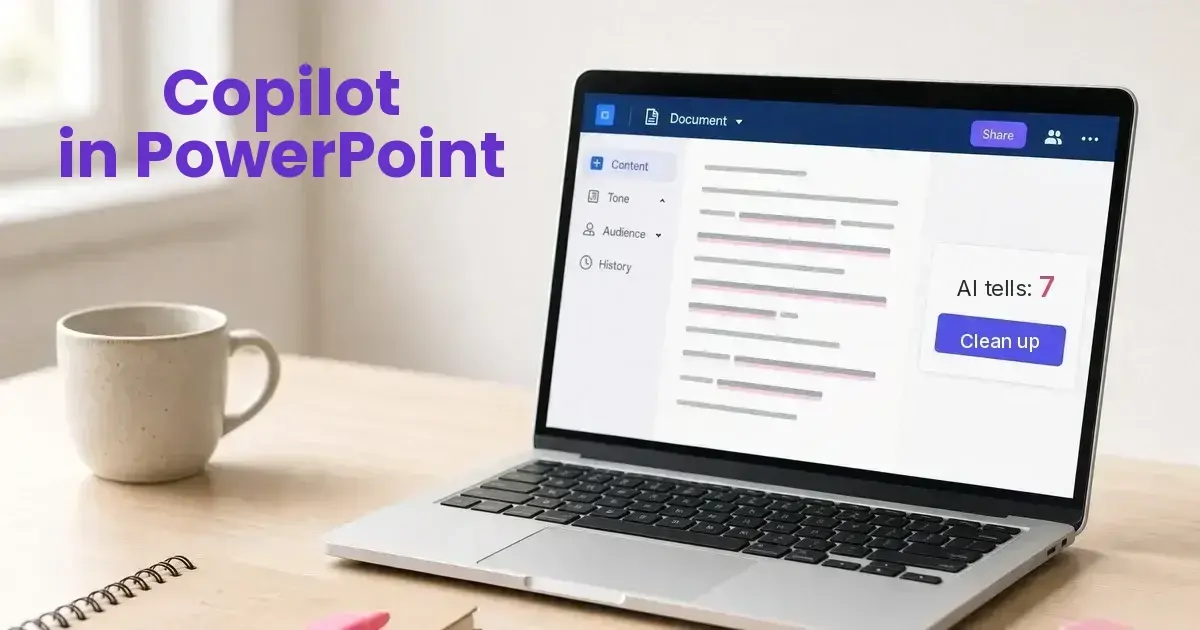
Copilot in PowerPoint drafts slides fast, but the copy often reads flat. See why it happens and use a short editing routine that makes deck text sound like you.
- Free scan, no sign up
- Runs in your browser
- Hidden character check
- Works on slide text and speaker notes
Forgot your code?
Copilot in PowerPoint can build a full presentation from a single prompt and rewrite slide text for tone and clarity. The slides it writes are usually correct but flat. Every bullet carries the same weight, every title makes the same kind of claim, and little of it sounds like a person said it out loud. The fix is mostly editing.
Quick answer: Start by rewriting the prompt with an audience, a decision and one real number. Next, set up a custom skill so Copilot in PowerPoint follows the formats you reuse, such as an executive summary slide. Then vary bullet length, swap abstract nouns for numbers, names and actions, and move the reasoning into the speaker notes. Finally, paste the text into the scanner above to catch hidden characters before the deck goes out.
That flatness is not a bug. It is what happens when a language model writes short text with no real constraints. Editing it takes less time than rebuilding the deck by hand.
Why Copilot in PowerPoint slide copy comes out flat
Slide copy is the hardest place to hide weak writing. A paragraph can absorb a vague sentence. A bullet cannot. When five words have to carry a point, every abstract noun and every filler phrase shows up at once.
Copilot writes to the prompt, not to your audience
If your prompt is "make a deck about Q3 results," Copilot in PowerPoint has no audience, no decision and no number to work with. So it fills the gap with balanced, neutral language that could belong to any company in any industry. The output is not wrong. It is just unanchored. Give it a specific room to talk to, like an executive review, a client kickoff or a class presentation, and the sentences change shape on their own.
The same AI tells from documents show up on slides
The tells that give away AI text in an essay do not disappear when the text is broken into bullets. In fact, they get more obvious:
- Typography: stacked em dashes, curly quotes pasted in from a chat window, uneven spacing
- Vocabulary: stiff, abstract words standing in for plain ones
- Rhythm: every bullet close to the same length, every title following the same pattern
- Hidden characters: invisible Unicode and pasted prompt fragments that ride along with the text
On a dense page of prose, readers feel these as a vague stiffness. On a slide with nine words, they are the whole slide.
Copilot in PowerPoint does not know your template or your numbers
In a June 2025 Microsoft Q&A thread, a team using Copilot company-wide said they wanted to lean on it for slide creation. Their problem was simple. Copilot did not consistently apply their corporate slide designs or follow them closely enough. If the layout drifts, the copy drifts with it, because Copilot is writing text for an imagined slide, not the slide you have.
What Copilot in PowerPoint does well
Keep this in perspective, because Copilot in PowerPoint is useful on the generation side. A full first draft from one prompt is a real head start. Microsoft 365 Copilot Chat also answers natural language questions grounded in apps like Teams and Outlook. And Copilot Pages lets people and AI work on content together in real time, pulling in material from Copilot, your files and the web.
None of those features is a style filter, though. Rewriting for tone will smooth a sentence. But it will not add a number, cut a bullet, or tell you that all seven of your titles make the same promise. That part is still yours.
The vocabulary problem on slides
Abstract nouns survive longer on slides than anywhere else because they sound professional. They are also the fastest way to make a deck forgettable. If you swap them for the plain version, the slide usually gets shorter and stronger at the same time. Our list of AI words to avoid covers the worst offenders. Here are a few common swaps for slides:
- Utilize becomes use
- Facilitate becomes help or run
- Optimize becomes improve or speed up
- Streamline becomes cut a step
- Drive outcomes becomes a verb and a number
- Stakeholders becomes the team you mean, by name
Run through the deck and highlight every word that would not appear in a spoken sentence. If a bullet only works because of the jargon, the bullet probably does not have a point yet.
The rhythm problem: every bullet the same length
Detectors look at two things when they score text. Perplexity measures how predictable each word is. Burstiness measures how much sentence length and structure vary. AI output tends to score low on burstiness because it produces evenly weighted sentences, while human writing swings between very short and fairly long.
Slides make this visible to any reader, detector or not. A column of five bullets, each fourteen words long, reads like a machine made it, because one did. So break the pattern on purpose. Keep one bullet to three words. Let one run long. Turn one into a question. Then the slide starts to sound like a person wrote it, since variation is the signal people pick up on.
A five-step fix for flat Copilot in PowerPoint slides
- Rewrite the prompt you give Copilot in PowerPoint with an audience, a decision and one real number. "Build a deck for the Thursday budget review that explains why support costs rose last quarter" gets better raw material than "make a deck about costs."
- Create a custom skill in PowerPoint so Copilot has standing instructions for the formats you reuse, such as an executive summary slide. A skill gives Copilot extra guidance for one repeatable task, which is the gap between generic bullets and your house style.
- Vary bullet length on purpose. Read the slide out loud. If every line takes the same breath, cut or expand one.
- Replace abstract nouns with concrete ones. Numbers, names and actions beat categories every time.
- Paste the finished text into the scanner above before the deck goes out. It catches invisible characters and pasted prompt fragments, and it gives you a read on how human the copy sounds.
| Flat Copilot slide copy | After editing |
|---|---|
| Utilize scalable reporting to drive optimized outcomes across the organization | Reporting takes two weeks. We need it in two days. |
| Three bullets, all fourteen words long | One bullet of four words, one of twenty, one fragment |
| Title: Improving Operational Efficiency Through Strategic Alignment | Title: Support costs doubled. Here is where. |
Speaker notes need a different kind of fix
Copilot in PowerPoint writes slide text and speaker notes the same way, which is backwards. Notes are where the explanation belongs. Slides carry the claim. If you move the reasoning off the slide and into the notes, the visible text gets sharper. The notes also get more natural, because a conversational tone fits there. Our guide to humanizing presentation text goes further on that split.
Then read your notes out loud once. Anything you would not say to a colleague in a meeting can come out. That single pass removes most of the stiffness that survives the slide edits.
What to check before the deck leaves your hands
- Every title makes a claim, not a category, and no two titles match
- Bullet lengths vary across the slide
- No em dash pileups and no curly quotes pasted from chat
- No invisible Unicode characters or leftover prompt text
- At least one number, name or specific detail per slide
- Copilot's layout matches your real template, including the sections it tends to skip
Unique titles help more than style, too. Section508.gov says each slide needs a unique title so people who use screen readers can find their way through the deck and understand it.
Features and licensing vary by plan and rollout, so check Microsoft's own documentation for what your version includes. The editing habits above work either way. If your team also drafts in Word and Outlook, our guide to Copilot writing at work covers the whole suite. For cleanup across apps, see how to remove AI tells in Microsoft 365.
Frequently Asked Questions
Why does Copilot in PowerPoint write such generic bullets?
Copilot responds to the prompt it gets. A short prompt with no audience, no decision and no numbers leaves the model to fill space with neutral language that fits almost any company. But if you add a specific room, a real figure and a clear purpose, it has something concrete to compress into bullets.
Can I teach Copilot in PowerPoint to follow my slide format?
Yes, up to a point. Skills give Copilot extra guidance for a specific task, such as building an executive summary slide. Even so, a June 2025 Microsoft Q&A thread reported that Copilot did not consistently apply a company's own slide designs. So expect to check the output against your template.
Does Copilot check my slides for AI tells?
Not as a listed feature. The documented features of Copilot in PowerPoint focus on building presentations from a prompt, translating slides and rewriting text for tone and clarity. Detection-style checks are not on that list. For invisible characters and prompt fragments, a dedicated scanner is the more reliable option. Also confirm what your plan includes in current Microsoft documentation.
Should I rewrite every Copilot bullet by hand?
No. Fix the titles first, since they carry the argument. Then vary bullet lengths and swap abstract nouns for concrete ones. Most slides need two or three edits, not a full rewrite. Once the prompt and the skill are in place, the first draft starts closer to finished and you edit less.
Is flat slide copy a problem if the deck is accurate?
It affects how the deck lands. Even, jargon-heavy bullets signal that nobody chose what mattered, and audiences read that as low confidence in the material. Sharper copy does not change the facts. It does change whether people remember them after the meeting ends.
Looking for other ideas? See all the ways to use Remove AI Tells.