AI Tells in Google Docs: Punctuation, Fonts and Phrasing That Give You Away
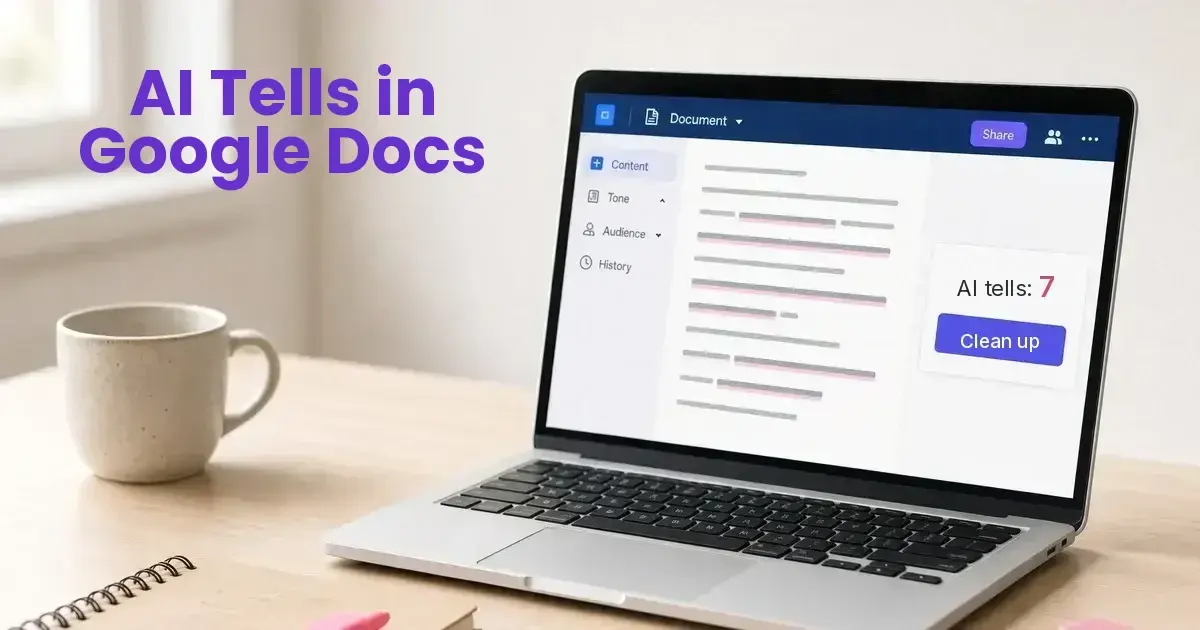
AI tells in Google Docs hide in punctuation, formatting and phrasing. Find them and fix them before you share the file.
- Free scan, no sign up
- Runs in your browser
- Hidden character check
- Works on text copied from Google Docs
Forgot your code?
AI tells in Google Docs are small signals that make a clean, well organized document read as machine made. They sit in three layers: punctuation habits such as heavy em dash use, formatting drift such as mixed fonts from pasted text, and phrasing with repeated formal words and an even rhythm. Version history adds one more clue, because large pasted blocks look different from gradual edits.
Quick answer: To clean up AI tells in Google Docs, paste the text as plain text and reapply your own formatting. Read it out loud and rewrite every sentence that sounds like a brochure. Replace at least half of your em dashes, vary paragraph lengths, and check for mixed quote marks, odd spacing and invisible characters. Then do your real revising in the same document. The guide to AI tells across Google Workspace covers Gmail, Sheets and Slides.
Nothing is technically wrong in a draft like that. Still, a reader or a teacher picks up on something, and the whole piece starts to feel borrowed. Google Docs also records a lot. It keeps revision history, it can change tone through Gemini, and it can summarize the style it just applied. So anyone who knows where to look has more to go on than the words alone. Below are the AI tells in Google Docs that matter most and what to do about each one.
What Counts as AI Tells in Google Docs
An AI tell is any small signal that makes a reader suspect a machine wrote or heavily edited the text. Most fall into four buckets. Typography covers fonts, spacing and punctuation marks. Vocabulary covers the words models reach for again and again. Rhythm covers sentence length and how evenly the paragraphs are built. Hidden characters are what you cannot see at all, like invisible Unicode marks or a pasted prompt.
None of these prove anything on their own. Together, though, they form a pattern, and patterns are what make people and software suspicious.
The same buckets apply in Gmail, Sheets and Slides. For the wider picture, see AI tells across Google Workspace.
Punctuation AI Tells in Google Docs
Punctuation is the easiest place to spot machine writing because it is consistent in ways human writing rarely is. People are messy with commas. Models are not.
Em Dash Overuse
The em dash is the classic example. It is a legitimate mark and plenty of human writers love it. But AI drafts lean on it as a default connector, sometimes several times in one paragraph. When every third sentence has a dramatic pause, it stops looking like style. It looks like a template. There is more on this in our guide to em dashes in AI writing.
The fix is not to ban the mark. Instead, vary the structure. Swap some dashes for a comma, a colon, parentheses or a full stop. If you delete every em dash and the paragraph still reads well, you had too many.
Punctuation That Is Too Perfect
Watch the quote marks as well. Pasted or generated text sometimes mixes straight and curly quotes. The same goes for spacing: double spaces after periods, or a serial comma that comes and goes.
Human drafting is consistent in its inconsistency. A model, by contrast, can keep every apostrophe and dash on one convention from the first line to the last. That uniformity is quiet, but real.
Font and Formatting AI Tells in Google Docs
Formatting tells are easy to miss while you type. Then someone else opens the file and they jump out.
Font Drift From Pasted Text
Paste text into a Google Doc and the block often keeps its own font and size. That is normal behavior, not evidence by itself. Still, a document with three fonts and two line spacings looks assembled rather than written. It is also one of the easiest AI tells in Google Docs to fix. If your body text changes appearance halfway down the page, clean it up before you share.
Formatting That Arrives Fully Formed
Google's page for Gemini in Google Docs pitches AI that helps you quickly create polished documents with images and tables. It also offers tools to refine writing and summarize content. So a document built with AI help can arrive fully structured, with headings, lists and tables in one pass.
Compare that to a normal draft, which grows. Headings get added after the fact. One section runs longer than the rest. There is a stray note in the middle. If the whole file looks like it came out of one mold, that tidiness reads as machine made.
Phrasing AI Tells in Google Docs
Phrasing tells are the ones detectors are built around, because they can be measured. Software commonly looks at how predictable each word is and how much sentence length varies from line to line.
Vocabulary That Repeats Itself
Every model has favorite words. When the same formal verbs and filler adjectives repeat across paragraphs, the vocabulary looks selected, not remembered. The fix is plain language, which is also what federal plain language guidance recommends: choose simple, clear words. Swap a formal verb for the one you would say out loud. Cut adjectives that do no work. Our list of AI words to avoid is a good place to start.
Watch for words you would never say in conversation. A corporate memo line in a personal essay is out of place.
Rhythm That Never Varies
Read your draft out loud and listen to the beat. Human writing is uneven. A short sentence lands. Then a longer one comes along and takes its time getting to the point. AI drafts, however, tend to settle into a steady mid-length cadence, with paragraphs that are close in size and shape.
Break it up on purpose. Follow a long, winding sentence with a four-word one. Merge two paragraphs. Cut a transition. The goal is not chaos, just variance.
Version History: The Biggest of the AI Tells in Google Docs
Google Docs keeps a detailed edit trail. That trail can say more about how a file was made than the writing does. A faculty resource from East Central College spells out the method. Instructors can have students share editable Google Documents, then review every change, addition and deletion as evidence of the work process. The page also notes that AI-generated changes will likely appear all at once in large blocks.
That is the tell. Real drafting looks like a slow build of small changes over hours or days. A document that jumps from empty to complete in one big insertion has a very different shape. If you use AI help, treat it as one input and do your real revising in the same file. Then the record reflects the work you did.
What Gemini Leaves Behind in Your Document
Google's help page on personalized documents with Gemini in Docs covers drafting, tone changes and writing styles. One detail stands out. When Gemini applies a style, it generates a summary of the style it used, for example "Formal, objective, and direct. Concise phrasing but avoid acronyms."
That style instruction shapes everything downstream. If you asked for a formal, direct tone, the result will read formal and direct from beginning to end. Readers notice consistency that strong. So edit the output into your own voice before you ship it. The same habit applies to email drafts from Gmail Help me write. In Docs, these features require an eligible Google Workspace or Google AI plan.
Does Google Docs Feed Your Work to AI?
This claim circulates widely and rarely comes with a source. The concern behind it is real, though. The Google Privacy Policy says Google may collect publicly available information to help train its AI models, including Gemini Apps. Privacy writers have raised questions about that. But none of these sources show that your private Google Docs are used for training the way viral posts suggest.
So treat it as something to check rather than repeat. For work accounts, read the Generative AI in Google Workspace Privacy Hub and check your settings. If a document is truly sensitive, keep it out of any cloud tool whose terms you have not read.
How to Clean Up AI Tells in Google Docs Before You Share
Cleanup is plain editing, done in a set order.
- Paste the text as plain text so borrowed fonts and sizes do not travel with it, then reapply your own formatting.
- Read it out loud and mark every sentence that sounds like a brochure. Rewrite those first.
- Count your em dashes and replace at least half of them.
- Break up the paragraph sizes so they are not all the same length.
- Check for mixed quote marks, odd spacing and invisible characters.
- Do your revising in the same document so the history shows how the piece really came together.
Want a second opinion on whether any AI tells in Google Docs survived your edit? Copy the text out of your doc and paste it into the scanner above. It flags the typography, vocabulary and rhythm issues you missed. It also catches hidden prompts and invisible Unicode characters that never show on the page. No tool can guarantee a detector result, and none should claim to. What you get is writing that sounds like a person wrote it.
Frequently Asked Questions
Does Google Docs show if I used AI to write something?
Google Docs does not label a document as AI written. What it does keep is a detailed version history, and that record can show how the file was built. A file that goes from blank to finished in one insertion looks very different from one that grew through many small edits.
What punctuation shows up most in AI tells in Google Docs?
The most common one is the em dash used as a default connector, often several times in one paragraph. Also watch for mixed curly and straight quotes, or spacing quirks like double spaces after periods.
Does Google Docs have its own AI detector?
No. Gemini in Docs is a writing assistant that can draft, refine and adjust tone. It does not score text for machine authorship, and it will not point out AI tells in Google Docs for you. Instead, some teachers review version history by hand. Third party detectors look at word predictability and sentence variation.
Why does my pasted text look different from the rest of the document?
Pasted text often keeps its original font, size and line spacing, and Google Docs does not always override that. Paste as plain text and then apply your own styles. That also drops hidden formatting and some of the invisible characters that ride along with copied content.
Can editing remove AI tells in Google Docs completely?
No editing process guarantees a specific outcome with any detector, because detectors change and none of them are perfectly accurate. What editing does control is how the writing reads to a human. Vary sentence length, swap formal words and trim repeated punctuation. Almost any draft will then sound more human.
Looking for other ideas? See all the ways to use Remove AI Tells.